Mark feature
The mark feature of ov allows you to remember a position on the screen and jump back to it later.
You can set a mark with m, remove a mark with Shift+m, move to the next mark with >, and move to the previous mark with <.
To delete all marks, use Ctrl+Delete.
Before v0.51.1, the mark feature only allowed you to move sequentially through the set marks.
In v0.51.1, the mark feature was greatly enhanced, allowing you to specify a mark number and move relative to the current mark position. Although I was aware of the requirement to move to a specific mark, I thought it would be difficult to use because you would have to remember the mark and its number or key, so I did not implement it.
However, if you can display a list of marks, it becomes much easier to move to a specific mark, so the ability to display a list of marks became an important point.
Therefore, I implemented a sidebar in ov itself to display the list of marks.
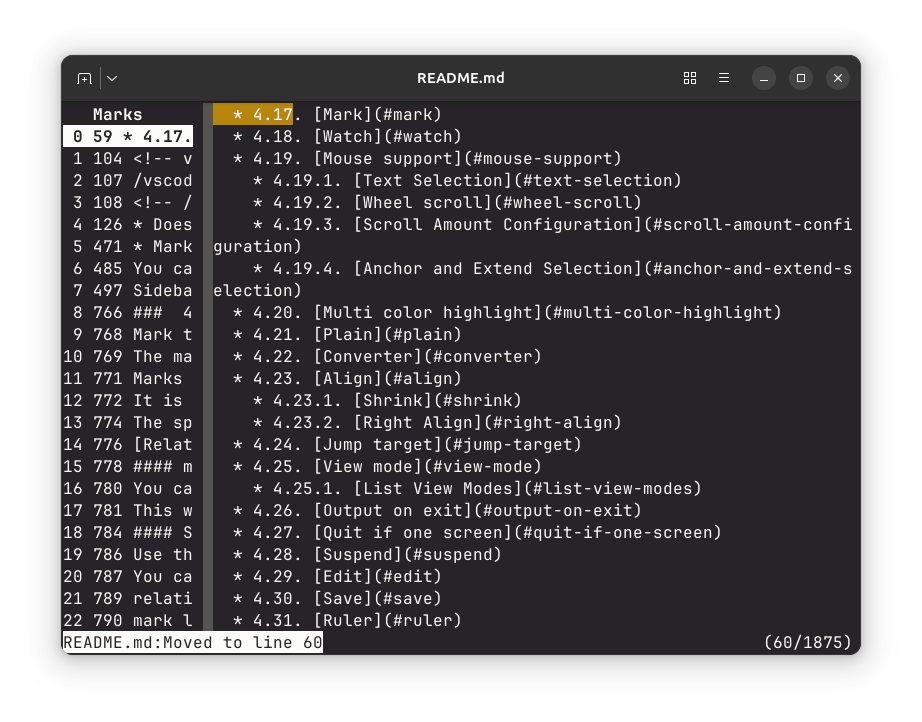
The sidebar mark list displays the mark number, line number, and mark content.
The sidebar can be shown or hidden with the default key Alt+m (sidebar for mark list).
In addition to > (next mark) and < (previous mark), you can also move to a mark by specifying its number with ,.
Even if the sidebar is hidden, when you enter mark input mode with ,, the mark list will be displayed. At this time, you can enter + or - at the beginning to move relative to the current mark position.
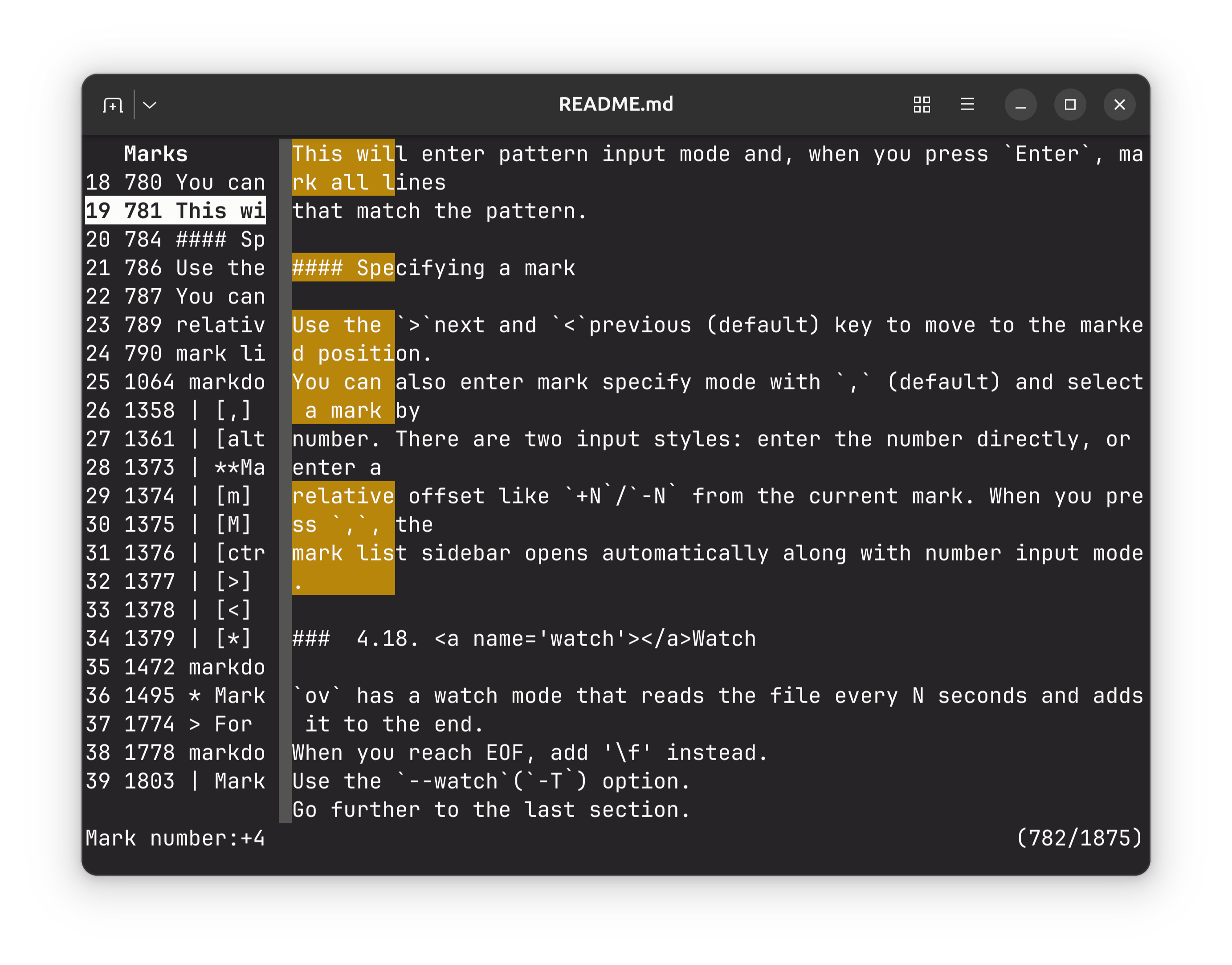
With the mark list displayed, I think the mark feature, which was not used much before, has become much more convenient.
Furthermore, as an enhancement to the mark feature, a function was added to mark all lines that match a search pattern.
Just like searching with /, ?, or &, you can use * to mark all lines that match a pattern.
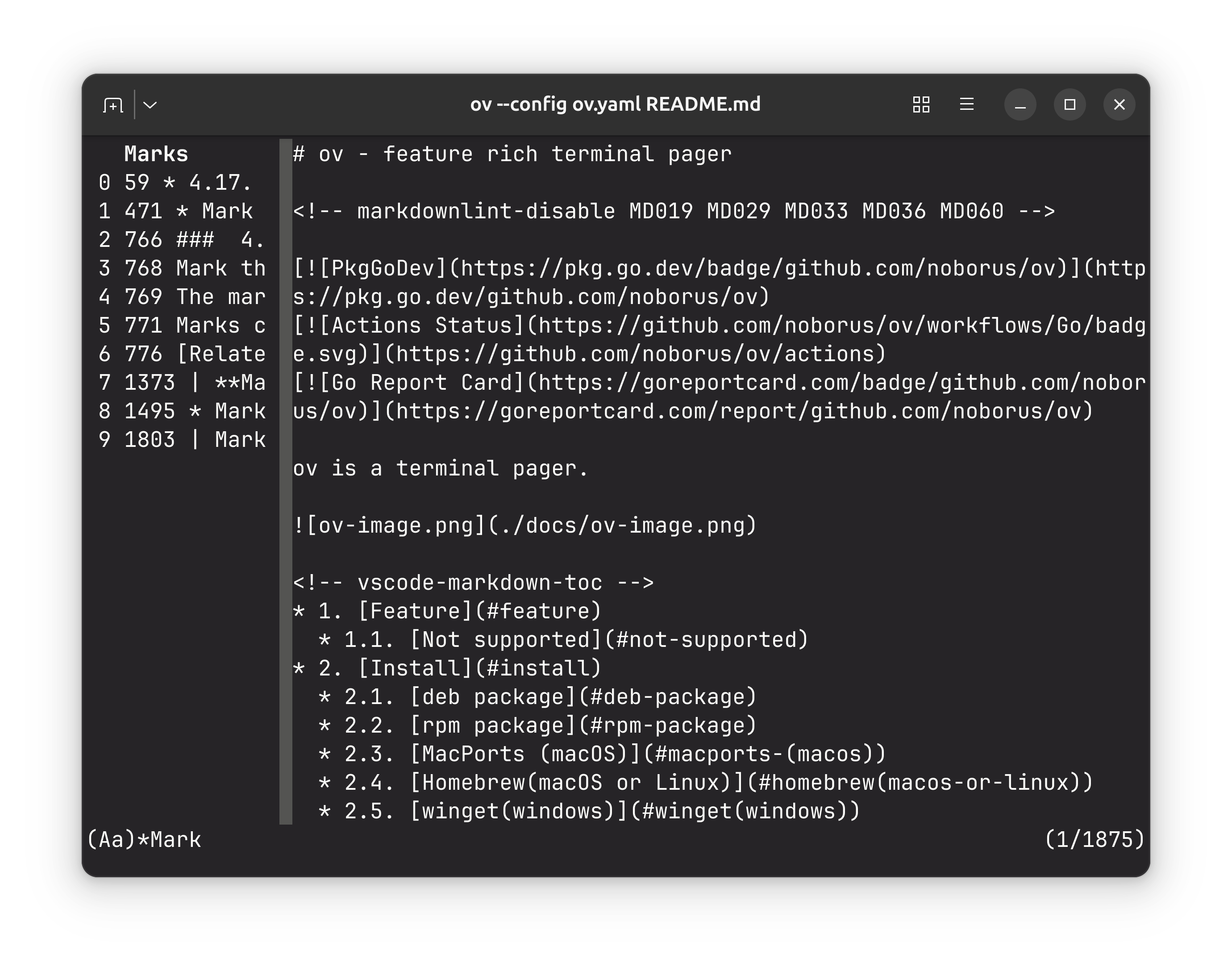
This feature is useful, for example, when you want to mark all lines containing a specific word and view only those lines in order.