How to use section
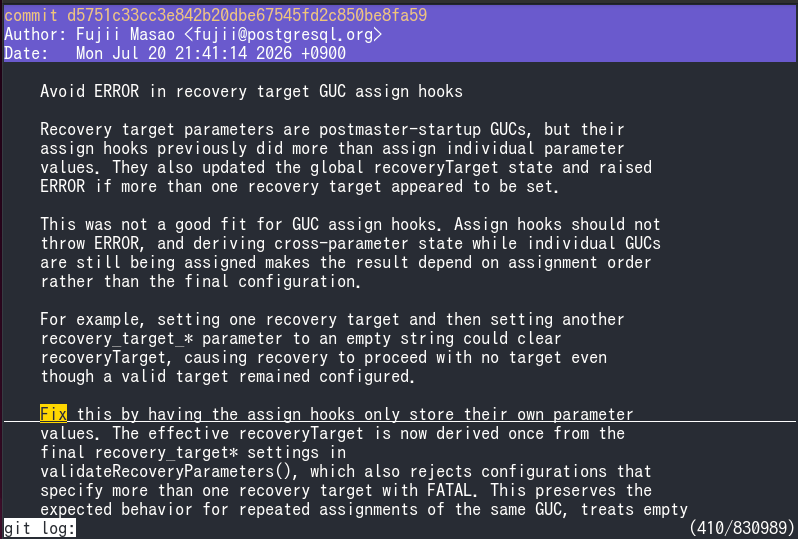
ov can display multi-line blocks as sections.
Sections are separated by section delimiter lines.
The section delimiter line is displayed in the StyleSectionLine style
(slate blue background).
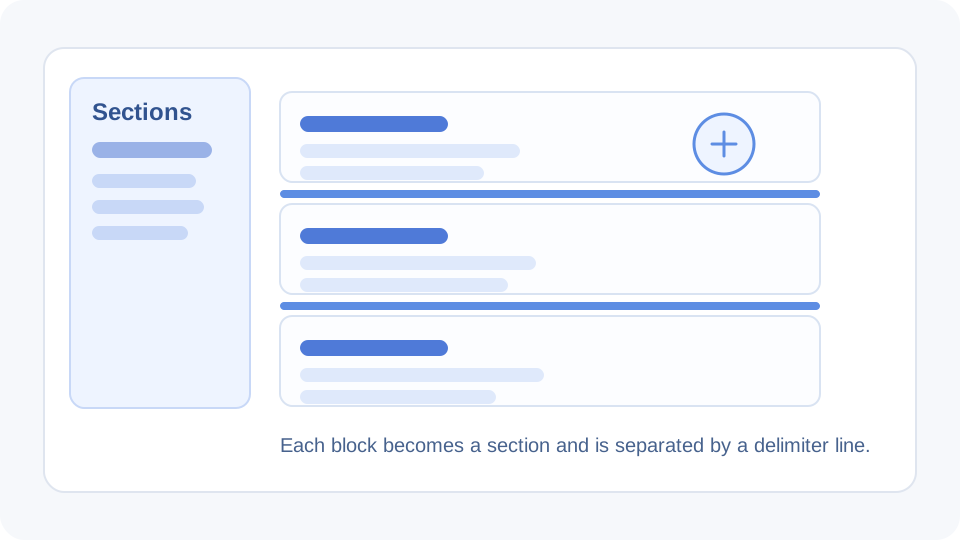
The section delimiter can optionally be specified as a regular expression string at startup.
Section list
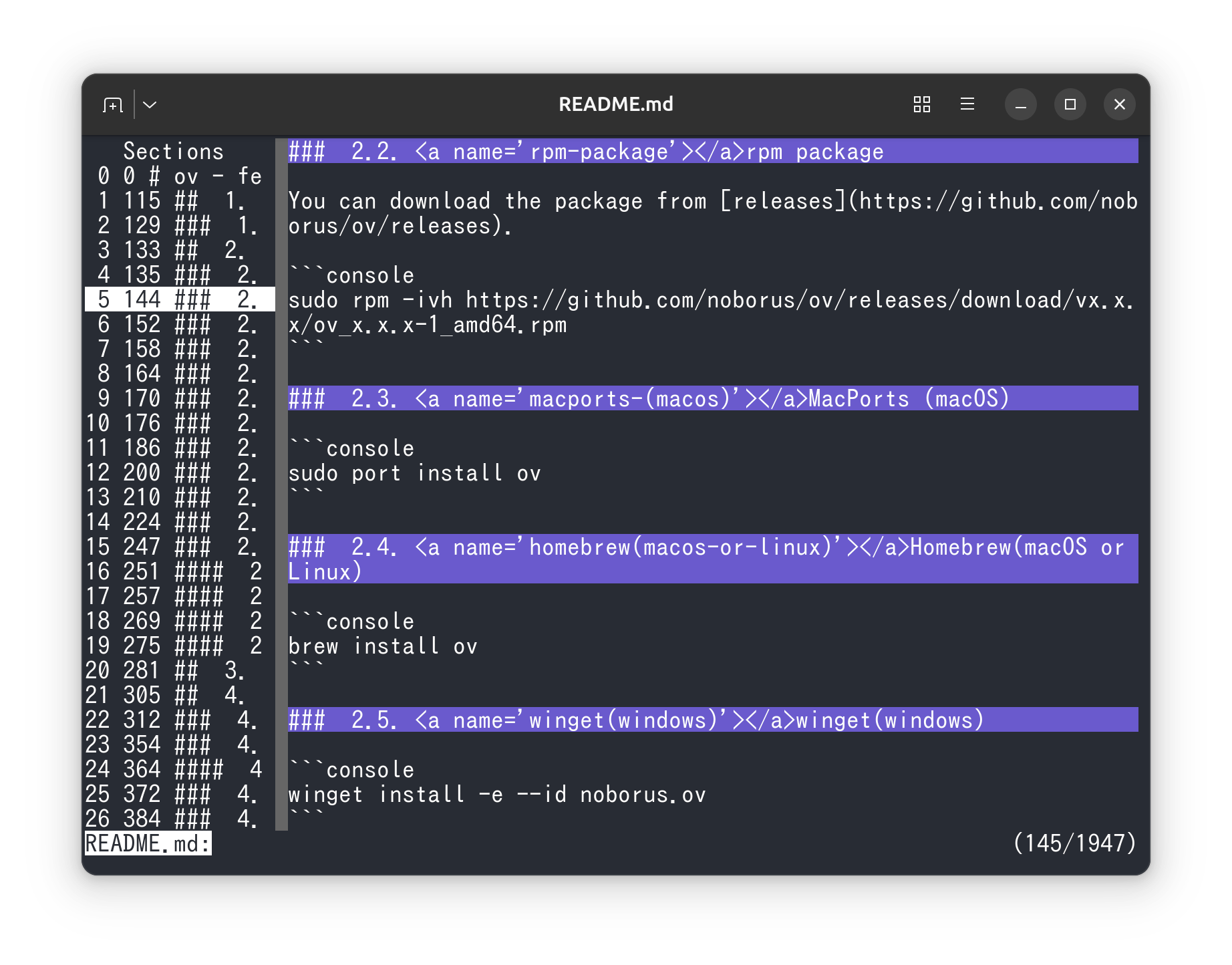
If you specify --sidebar-mode=sections, you can show a list of detected sections in the sidebar. It can be used like a table of contents.
Section delimiter input mode
After startup, you can set the section delimiter by entering it in input mode.
The section delimiter input mode can be opened with the section_delimiter key binding (Alt+d).
Info
^$ means that blank lines are used as section delimiters.
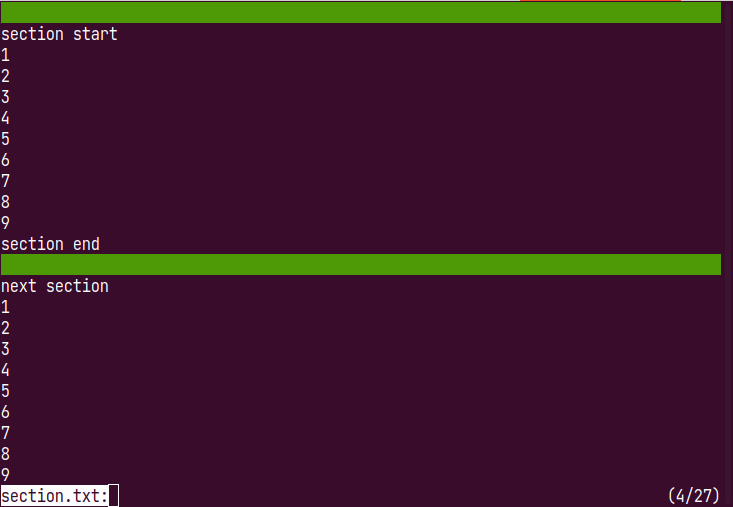
If section delimiters are not needed as section headers (blank lines, etc.),
--section-start=1 can be used to display from the next line.
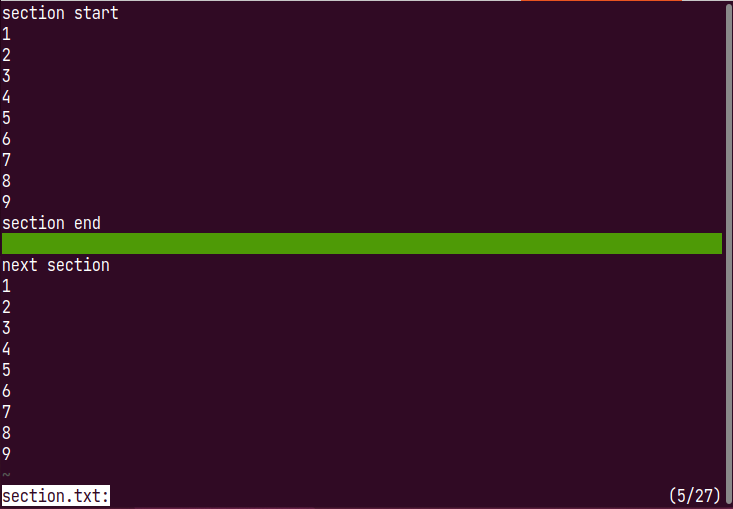
Follow section
--follow-section uses sections instead of the follow-mode line.
It is suitable for use with watch of psql.
Moving between sections
To move to the next section, just press space.
If there is another section, space moves there; otherwise, it scrolls by one screen.
To move to the previous section, press ^.
Section headers
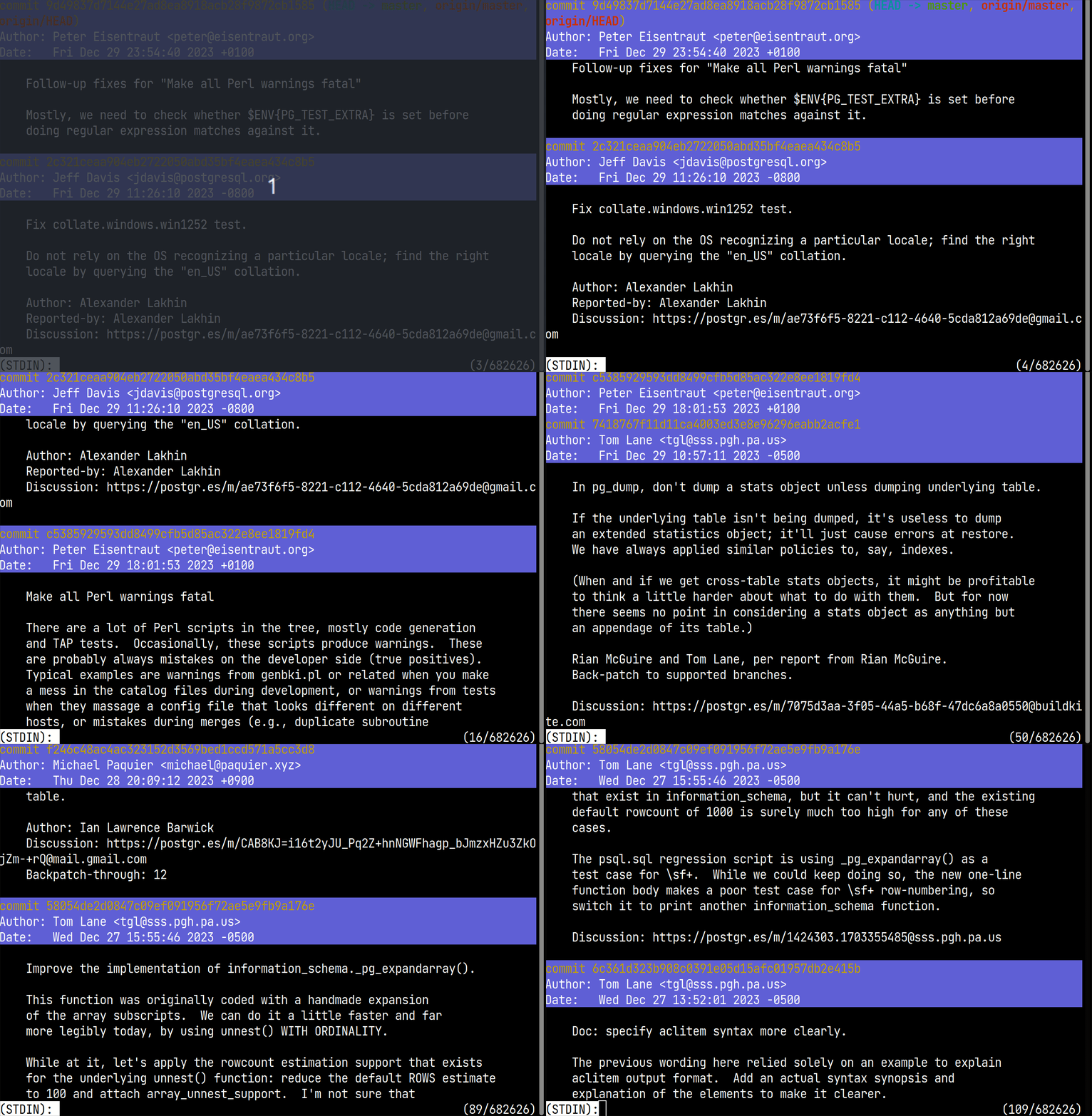
The line specified by a section is kept visible as the section header while that section is displayed.
Section headers can also span multiple lines. For example, specifying --section-header-num=3 makes the section header three lines long.
For example, when treating multi-line blocks such as git log output as sections, you can display the first few lines as the section header and scroll while checking the section contents.
Make search jumps section-based
Normally, search displays the matched line at the top.
With --jump-target=section (or section via Ctrl+j after startup), ov keeps the start of the matched section visible as much as possible while showing the matched line.
This lets you review search results while still seeing the contents of the surrounding section.