How ov thinks about syntax highlighting
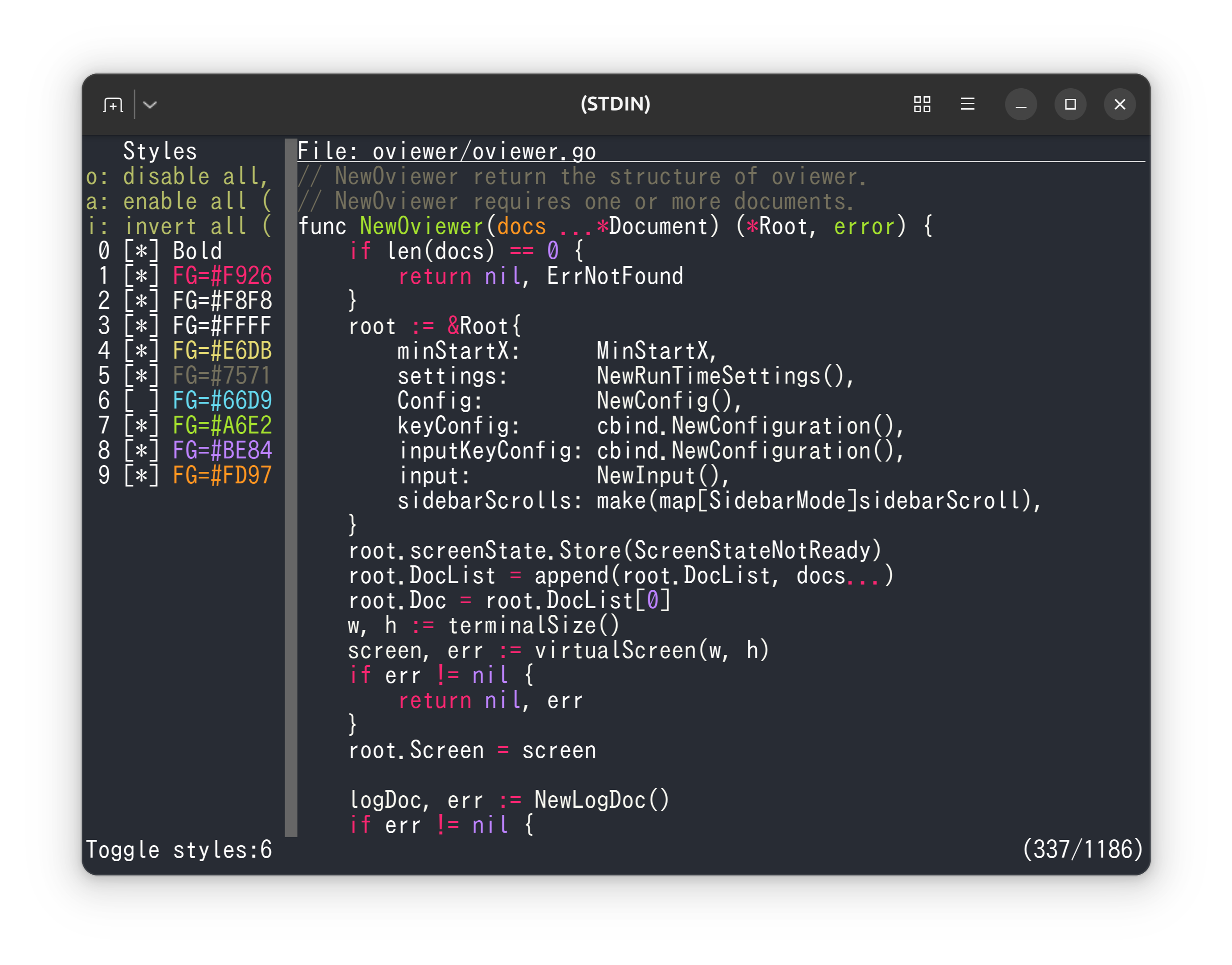
How to think about syntax highlighting
ov does not have built-in syntax highlighting. However, it is designed to be used as a pager for commands that do have syntax highlighting, such as bat.
One reason ov does not include syntax highlighting is the cost of supporting many languages. Another reason is that it is difficult to provide highlighting that satisfies everyone.
I agree that completely uncolored code is hard to read. At the same time, syntax highlighting is often over-colored, which can make code harder to read in practice.
Some people have proposed ways to address this problem.
I agree with much of that direction, especially the idea of not over-emphasizing elements that are not important. However, what counts as important changes depending on what you are trying to read at that moment. Sometimes comments are important. Sometimes strings are. Sometimes keywords matter most, and sometimes delimiters do.
Suppressing syntax highlighting
So I changed the perspective.
Instead of deciding how to color code, it is often better to reduce colors on parts that are not important at that moment in already colored output. The goal is to dynamically switch what is important at that moment.
Because ov is a pager, you can change the display after it is shown. Also, with the sidebar feature already implemented, ov can provide a UI where you can adjust while visually checking the result.
Press o to open the list of highlighted styles and enter the Toggle styles: input mode.
From there, you can specify style numbers in Styles to suppress highlighting.
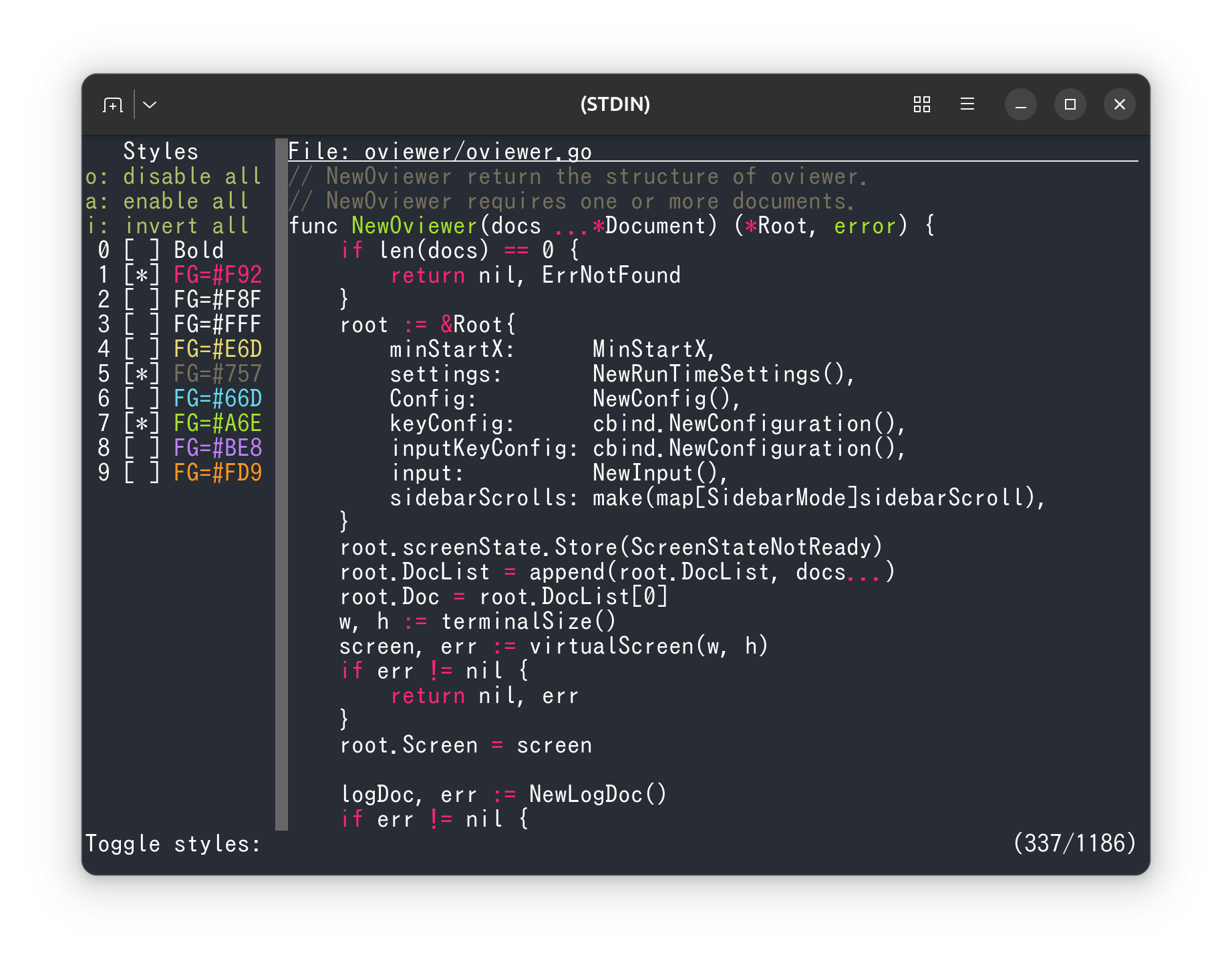
You can also use shortcuts.
In the Toggle styles: input mode, o suppresses all highlights, a enables all highlights, and i inverts the current state.
For example, to enable only style 1, type o1.
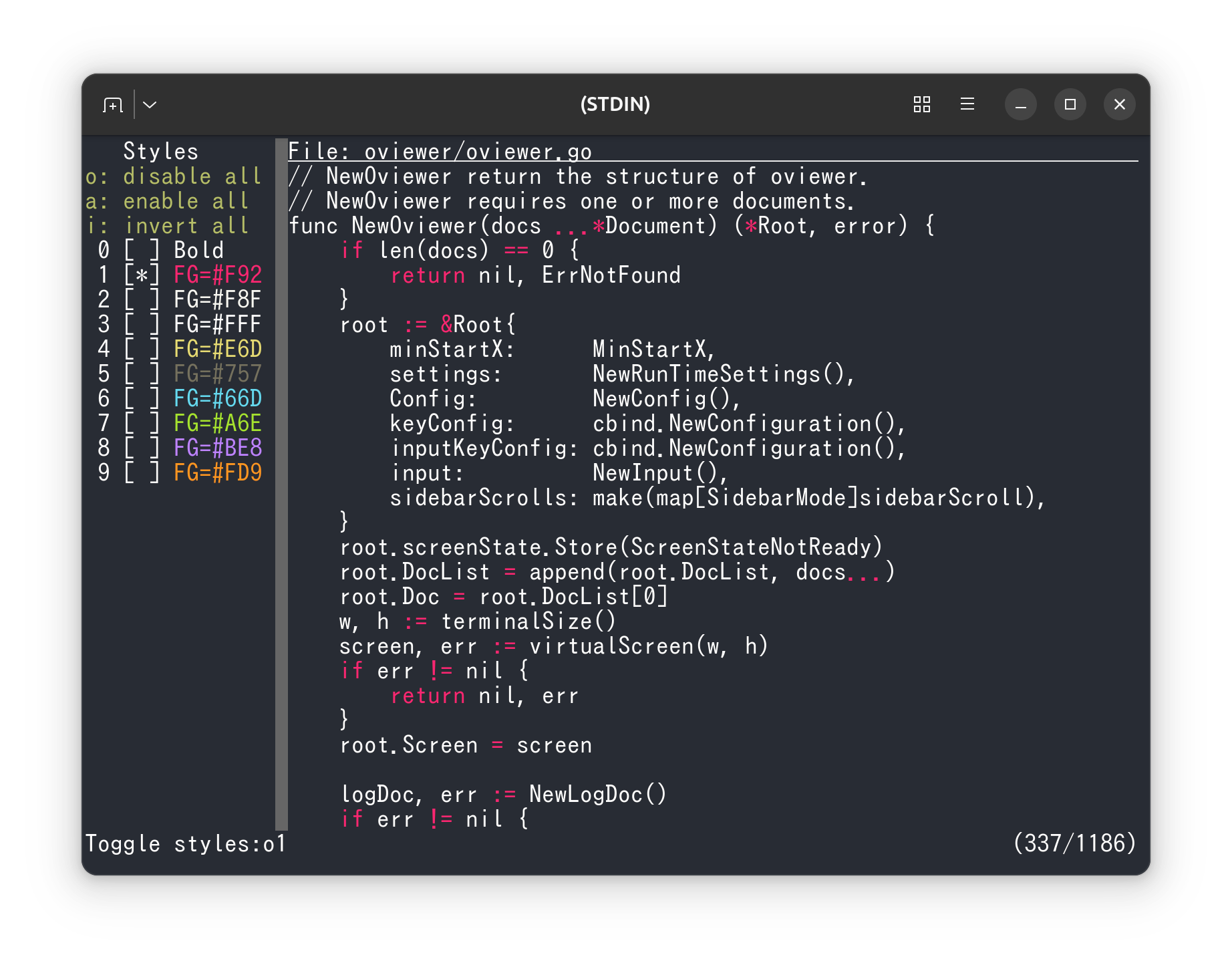
To specify multiple numbers, separate them with commas.
For example, o1,3 enables only styles 1 and 3.
You can also specify ranges.
For example, o1-3 enables styles 1 through 3.
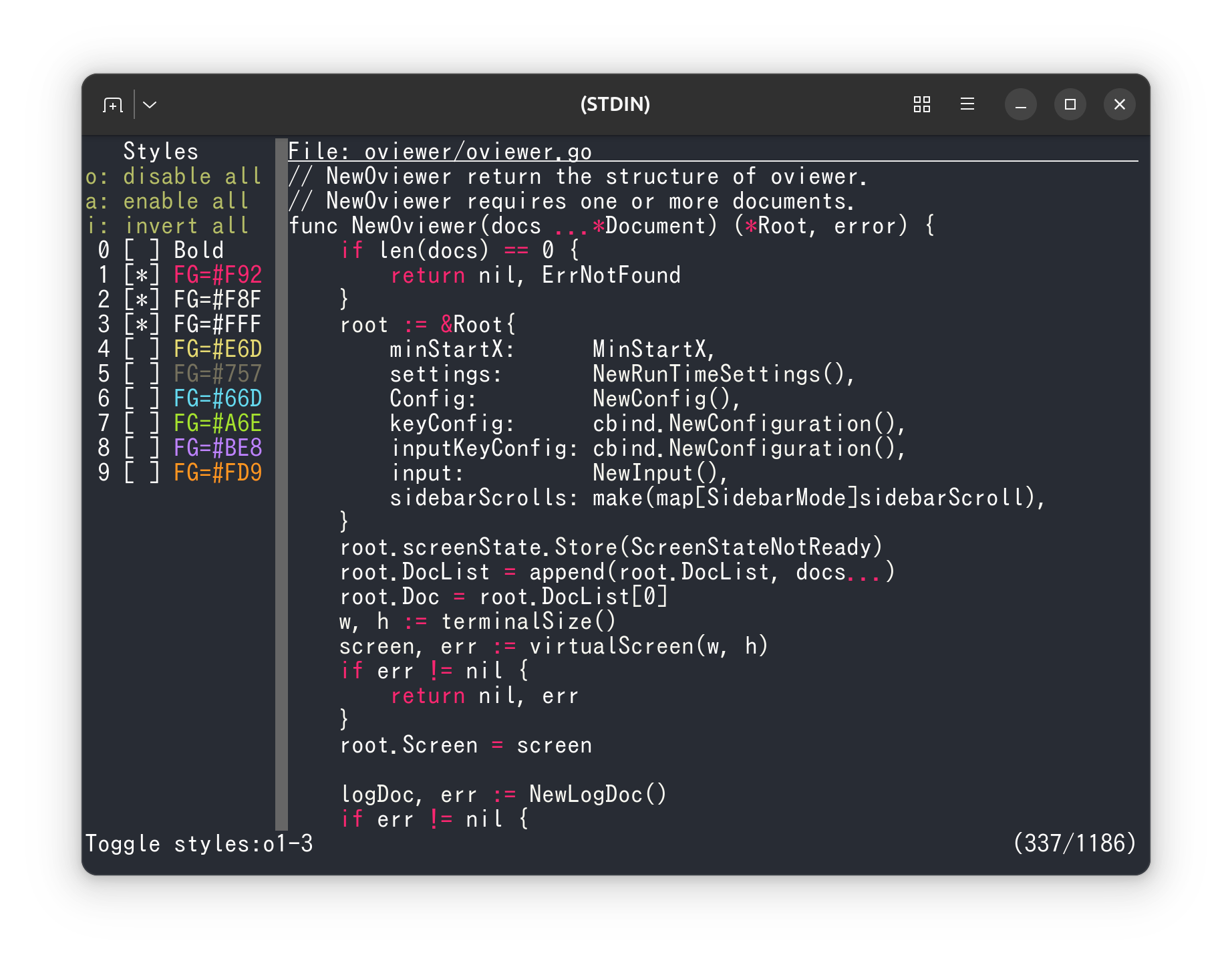
Input is reflected immediately.
On the other hand, pressing ESC to leave the mode does not cancel your changes.
If you make a mistake, delete what you entered and type it again.
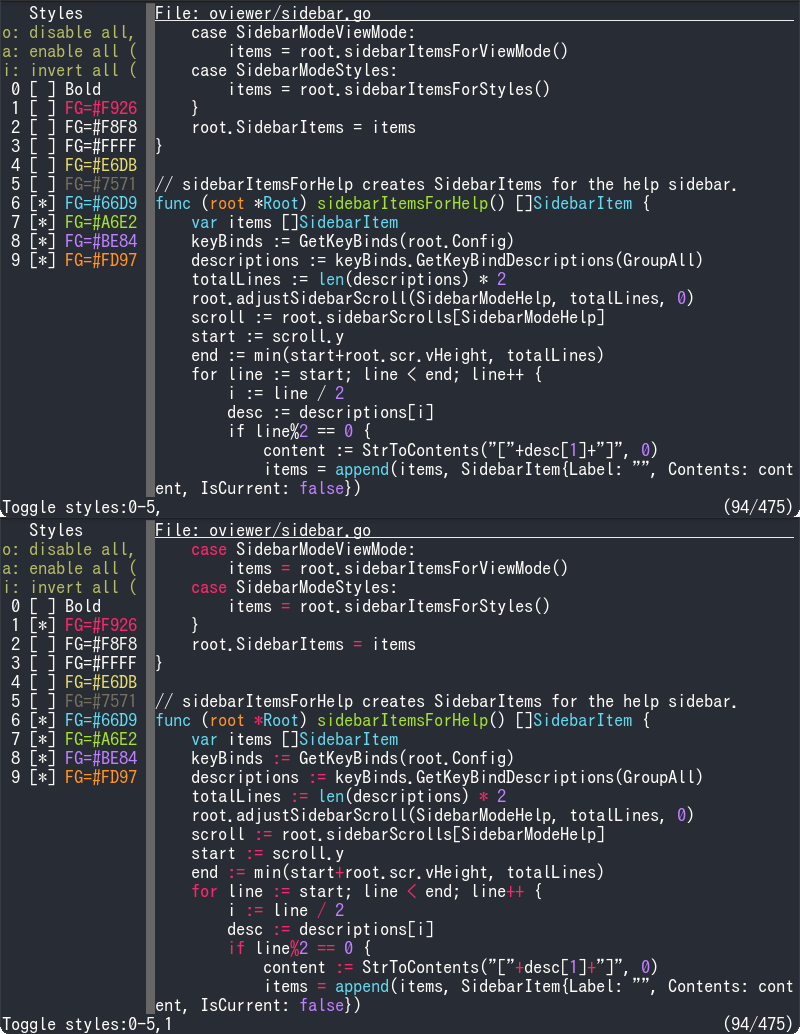
Suppress hard-to-read colors
Depending on your terminal theme, syntax highlighting may use colors that are hard to read. In that case, you can target and suppress only those specific styles.
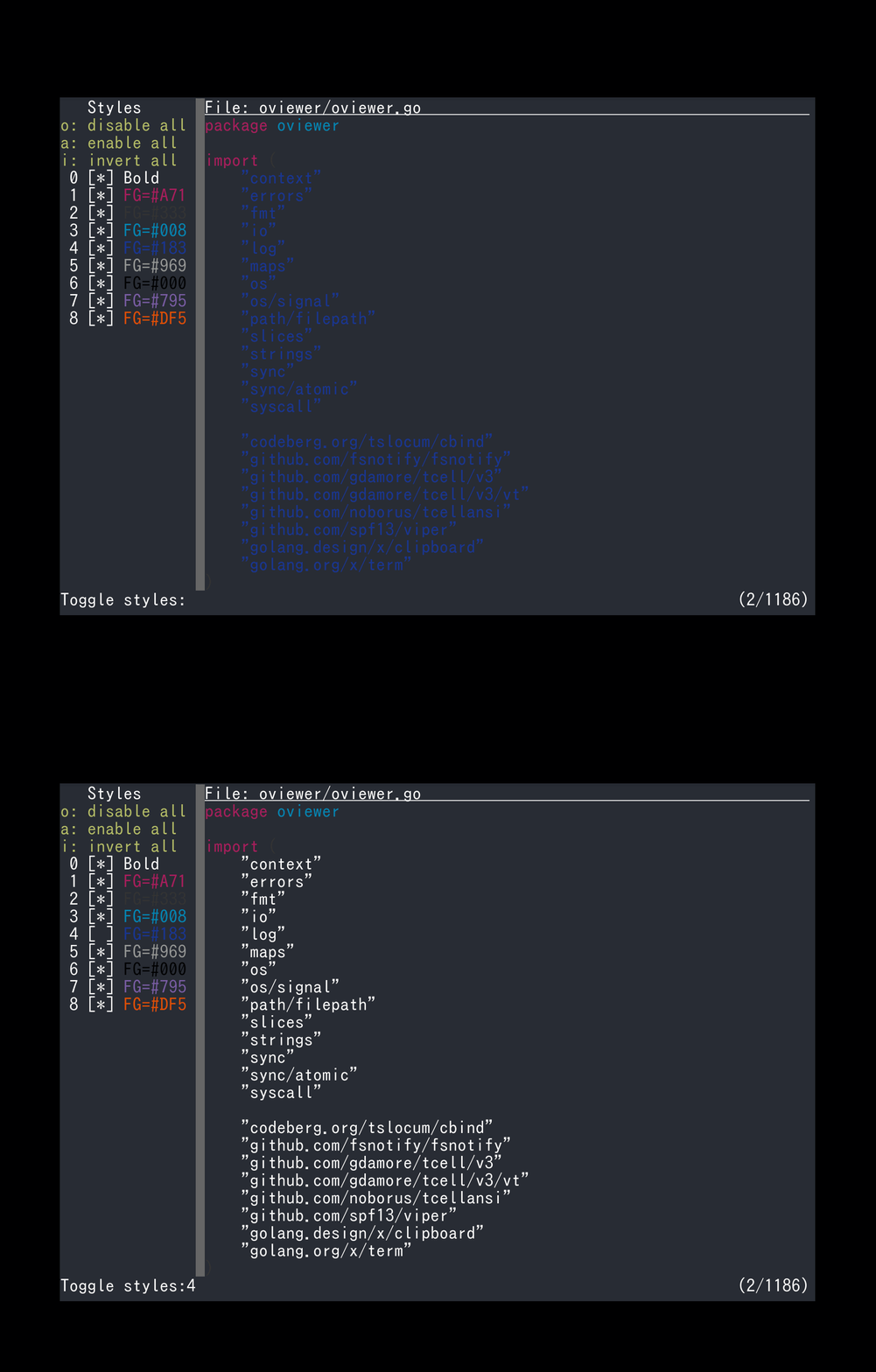
Change the syntax-highlighting application
This feature is not limited to bat.
If an application outputs colors via escape sequences, you can use ov’s syntax-highlight suppression with it.
For example, the traditional highlight command also works with ov’s syntax-highlight suppression.
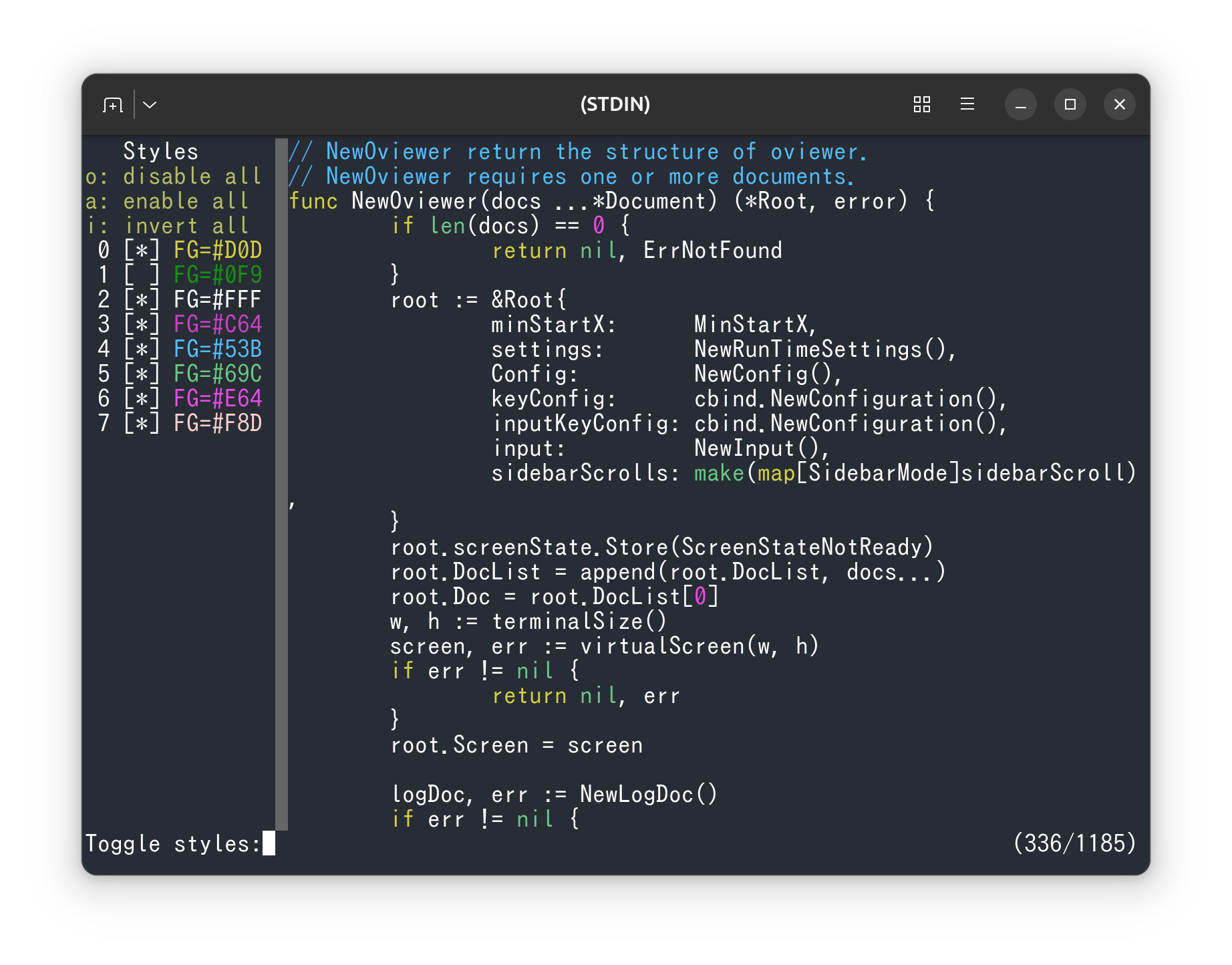
Usage patterns
It helps to change your suppression strategy depending on what you are reading.
When you want to follow structure Prioritize visibility of keywords and delimiters, and suppress decorative colors.
When you want to inspect strings or comments Keep string/comment-related styles and reduce others to lower noise.
When terminal theme and palette conflict Target only the styles that use hard-to-read colors.
Even when syntax highlighting is over-colored, ov lets you keep color only where it matters.
Summary
The role of ov is not to decide the perfect coloring. Its role is to make it easier to extract currently relevant information from output that is already colored. The goal is to improve readability by subtracting color, not by adding more color.